

Microsoft Teams: How Do I Sign Out and Back into Teams?
It's as easy as 1, 2, 3!
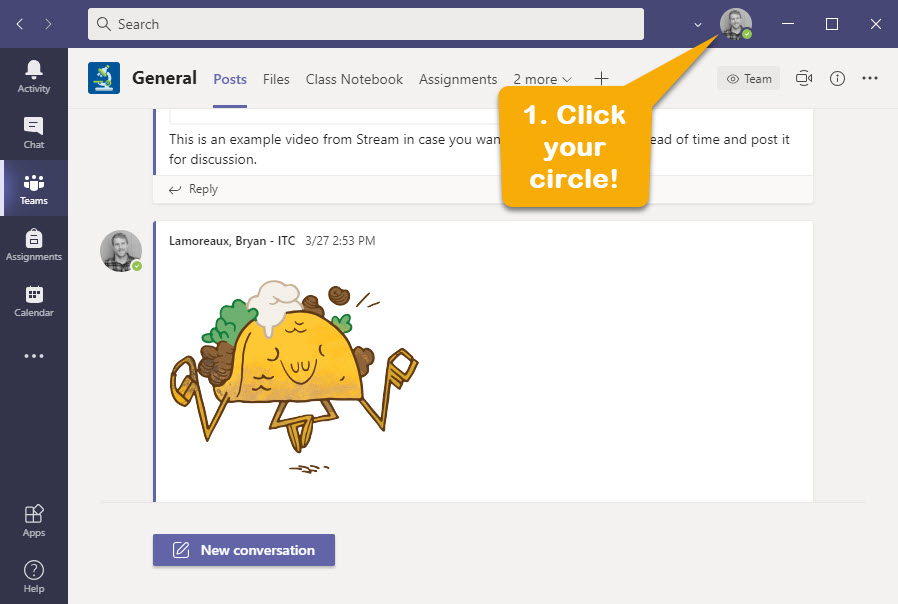
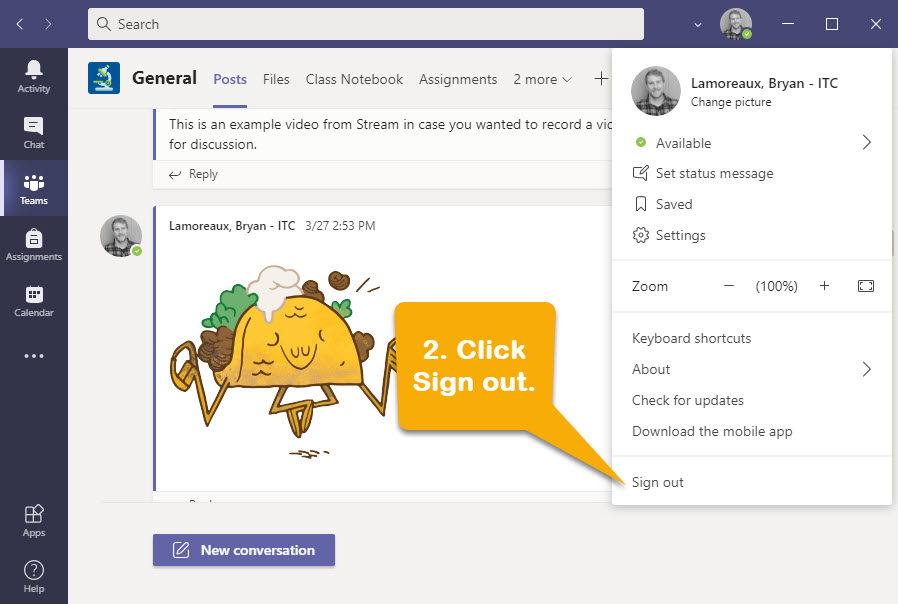
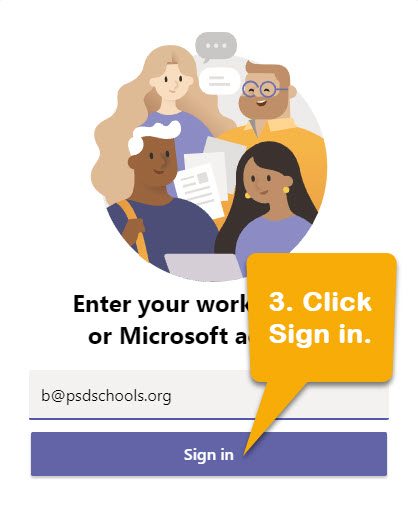

It's as easy as 1, 2, 3!
There are a few ways to get to Teams from a personal device*, so let's dive in a bit closer:
1. Navigate to https://mail.psdschools.org
2. Have your Student login with their PSD username and password.
3. Click on the waffle in the upper-left corner.
4. Click on the "Teams" app icon.
1. Navigate to https://teams.microsoft.com.
Yes it will!
Teams can be run from the Browser on the Chromebook or as an app, downloaded and installed to the device from the Play Store.
Keep in mind, additional features within Teams Meetings such as Webcam Background Effects and the large Gallery where more Students can be visible on the screen at once may not work as anticipated. See below for more detail:
There are usually 2 reasons you might not see an application you wish to install in Software Center: